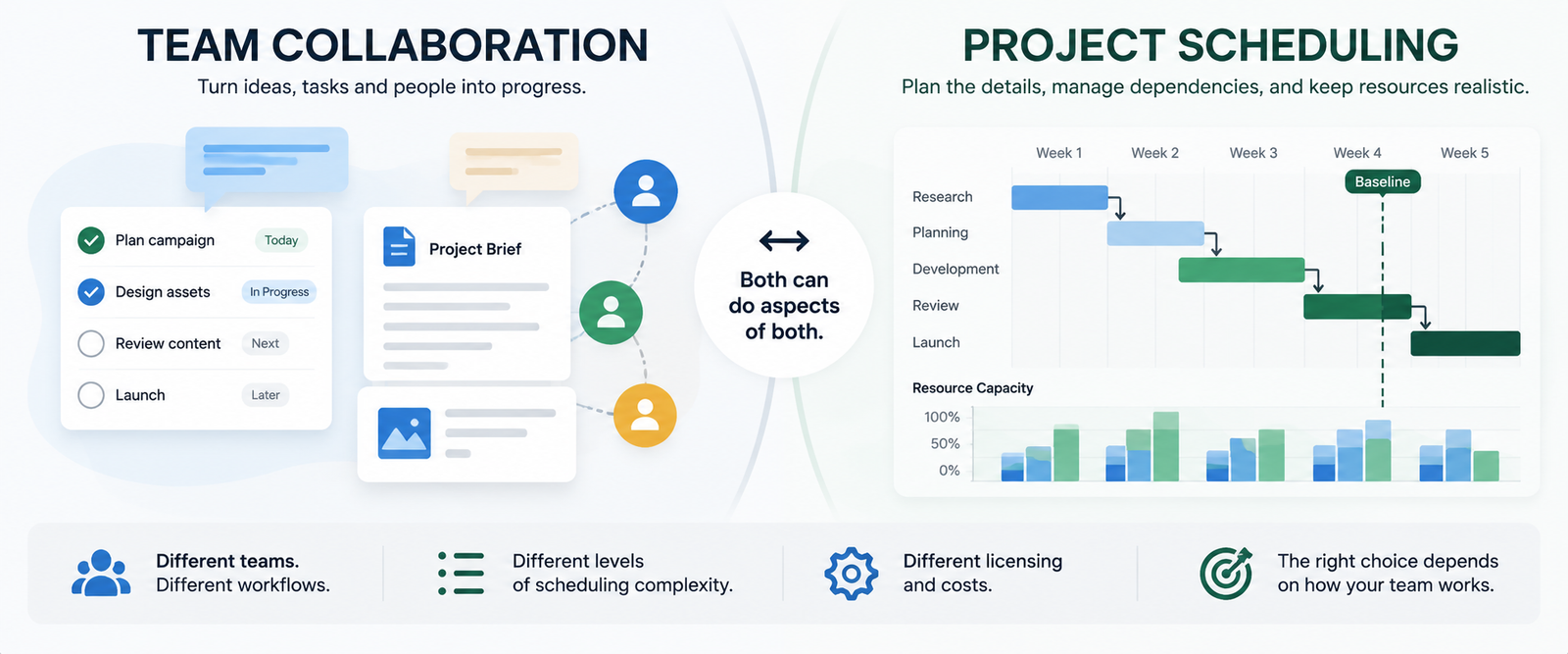
You’re probably here because someone said, “Let’s just use Microsoft Project,” someone else said, “Why not ClickUp?”, and now there’s a meeting on the calendar. Both are defensible choices. Both come with fine print that can ruin a quarter.
The first complication is that “Microsoft Project” is no longer one thing. Microsoft’s lineup now includes Planner (included with Microsoft 365), paid Planner plans with premium capabilities, Planner and Project Plan 3 (which bundles the Project desktop app), and Project desktop itself. Two older cloud services are off the menu. Project for the web was retired as its capabilities moved into Planner, and Project Online reached its announced retirement date of September 30, 2026. That announcement explicitly excluded Project desktop and Planner. So the real question behind clickup vs microsoft project is which Microsoft tier you’d actually buy, and whether you need it.
This is a research-based comparison built from official documentation and pricing pages checked on October 23, 2026. We did not conduct hands-on tests of either product.
Quick Verdict: Who Should Choose Which?
There’s no universal winner, and anyone who names one is selling something. Here’s how it breaks down.
Small collaborative knowledge-work team: ClickUp is the natural starting point. Its Help Center documents a Gantt view, dependencies and a critical path toggle inside the same workspace where people comment and assign work. If your plan is mostly “who does what by Friday,” a heavyweight scheduling tool may be a license you pay for and never open.
Dedicated scheduler managing complex dependencies: Start with Planner and Project Plan 3. Microsoft lists baselines, critical path, lead and lag, and the Project desktop app in that tier. That doesn’t prove it’s deeper than ClickUp for every schedule, but it’s the more itemized scheduling toolkit.
Microsoft 365-centric organization: Begin with Planner and Planner Plan 1. Step up to Plan 3 only for the people who truly need baselines and critical path.
Agency or cross-functional operations team: ClickUp likely fits better, especially when many contributors don’t think of themselves as project managers.
Team migrating an existing Microsoft Project schedule: Pause before buying anything. Import is not preservation, as the migration section explains.
ClickUp vs Microsoft Project: Feature Comparison
Every row below is tied to a vendor source, and every row carries a plan tag, because the same word can hide a different tier. “Critical path” appears on both sides. Microsoft puts it in Plan 3 only, so a Plan 1 buyer expecting it will be disappointed in a very modern, subscription-shaped way.
| Capability | ClickUp | Microsoft |
|---|---|---|
| Gantt / timeline | Gantt view on any List, Folder or Space | Timeline (Gantt) view from Planner Plan 1; Project desktop with Plan 3 |
| Dependencies | Drag-to-link; optional auto-reschedule of downstream tasks | Finish-to-start from Plan 1; lead and lag from Plan 3 |
| Critical path | “Show critical path” toggle in Gantt view | Plan 3 |
| Baselines | Gantt baselines snapshot task start and end dates | Plan 3 |
| Resource view | Workload view, usage-capped by plan | People view (Plan 1); Assignments view (Plan 3) |
| Cost control | Time estimates and tracking confirmed; budgeting depth not established | Project desktop supports resource rates, fixed costs and cost tracking; Plan 3 includes Project desktop |
| Lifecycle | Active | Planner and Project desktop active; Project Online retired |
Sources: Microsoft Project desktop cost guidance; ClickUp Help Center on Gantt view, baselines and Workload view limits. Microsoft’s Planner plan comparison. Checked October 23, 2026.
Scheduling: Gantt Charts, Dependencies, Critical Paths and Baselines
A Gantt chart is a picture of your assumptions. It looks authoritative, with bars, arrows and a satisfying left-to-right flow like a very organized waterfall. But a bar only means someone typed two dates.
What ClickUp documents. A Gantt view can be added to a List, Folder or Space. You drag a connector between task bars to create a dependency. An optional “Reschedule dependencies” setting cascades a date change through downstream tasks. “Show critical path” highlights the longest dependent chain in red and leaves slack on everything else.
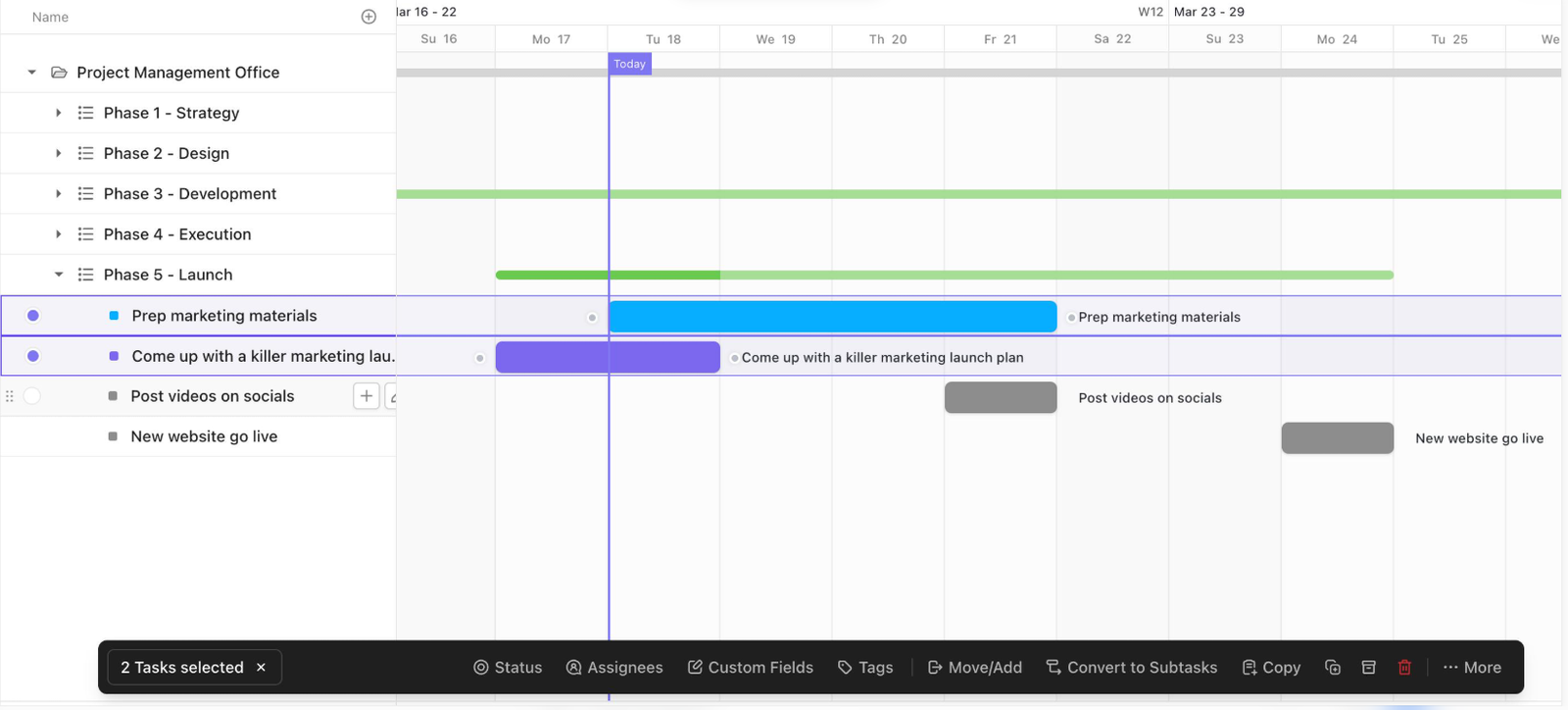
Baselines are documented separately. They create snapshots of task start and end dates, which you can show or hide on the Gantt view. Note what’s captured: dates. The documentation we reviewed doesn’t describe baselining costs or assignments. A customer request on ClickUp’s feedback board calls baselines static and asks for live planned-versus-actual comparison. That’s customer opinion, not product documentation, so test it in a trial.
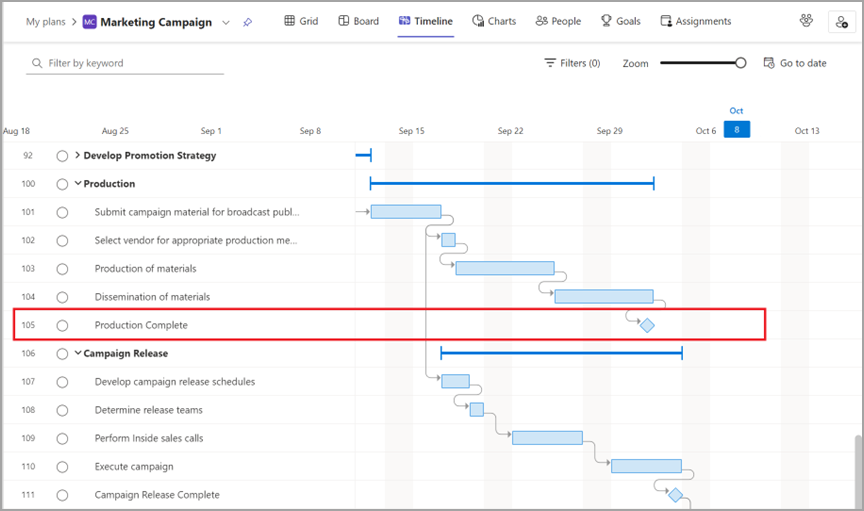
What Microsoft lists. Microsoft’s plan page assigns capabilities by tier. Planner Plan 1 includes a Timeline (Gantt) view and finish-to-start dependencies. Planner and Project Plan 3 adds baselines, critical path, lead and lag, and the Project desktop app. We found no equivalent itemization of dependency types or lag in the ClickUp pages we reviewed. Don’t assume parity in either direction.
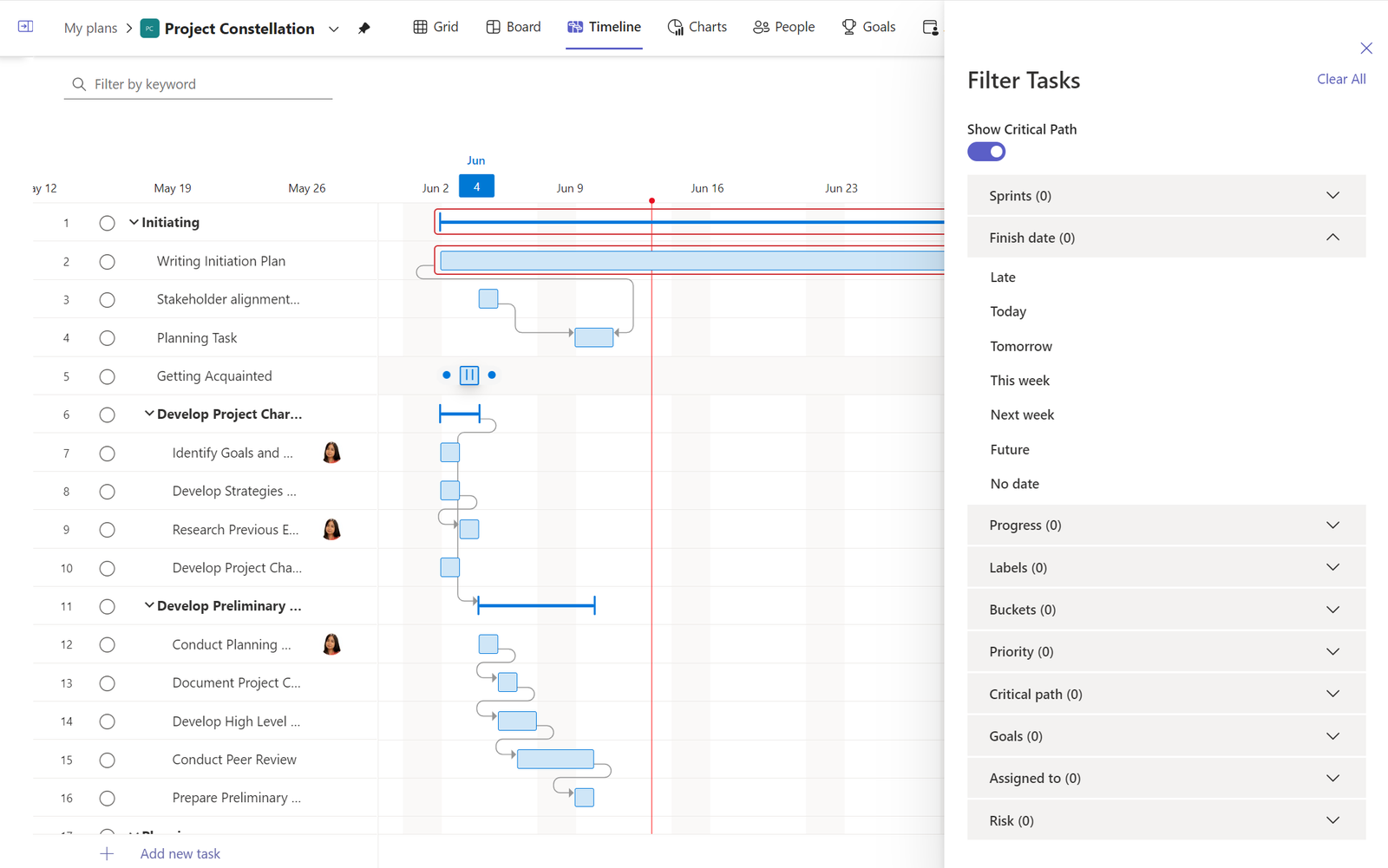
An illustrative example (hypothetical, not tested). Picture a 60-task product launch. Creative approval depends on legal review, which depends on final copy. Final copy slips four days. In a well-built schedule, that slip propagates and the critical path shows whether launch moves. In a poorly built one, someone has typed over the dates, the arrows are decoration, and the launch date holds right up until the meeting where it doesn’t.
Our take. If you can describe your schedule in a couple of sentences, ClickUp’s documented toolkit is plausibly enough, and you get collaboration in the bargain. If you must defend your schedule logic to a client, an auditor or a skeptical CFO, put Plan 3 on the shortlist and test it hard. Both products have a Gantt chart. The question is whether anyone will notice when the chart is lying.
Resources, Workload and Cost Management
Here’s the scenario that humbles every project manager at least once. The schedule is lovely. Every dependency is wired. The critical path is a tasteful red. And Priya is assigned 70 hours of work in a 40-hour week, across three projects, two of which she doesn’t know she’s on.
Dependencies describe the order of work. They say nothing about whether the people exist to do it.
ClickUp. Workload view shows the work assigned to each person over a chosen period, measured by time estimates or task counts against capacity or availability. ClickUp’s availability table is specific:
- Free Forever allows 60 uses and Unlimited allows 100.
- Business allows unlimited uses.
- Customizing capacity per day or marking days as no-capacity requires Business Plus or Enterprise.
- Guests can’t view Workload at all.
A “use” includes creating or opening the view, rescheduling or assigning tasks, and setting capacity. In other words, the Unlimited plan meters your indecision.
Microsoft. Planner Plan 1 includes a People view for resource allocation and workload balancing. Plan 3 adds an Assignments view and includes the Project desktop app. Microsoft documents cost entry for resources and tasks in Project desktop.
Cost control deserves a closer comparison. Microsoft's Project desktop cost-tracking guidance describes comparing planned and actual costs, and its resource-cost documentation covers pay rates and fixed task costs. Plan 3 includes the desktop app, but this does not establish that the Planner web experience has identical financial features or that Microsoft has a measured advantage over ClickUp. ClickUp’s reviewed documents support time estimates and workload tracking, but we have not established equivalent native project-cost baselining. If financial variance or earned-value analysis is mandatory, check the precise workflow and license before purchase. Practitioner Microsoft Project examples from 2020–2024 describe resource sheets and capacity balancing; they remain historical background, not our own tests.
Practical advice. Write down the three resource questions you ask every week (“Who’s overloaded?” “What does this delay cost?”) and test whether each tool answers them on the plan you’d actually buy.
Collaboration, Ease of Adoption and Microsoft 365
A scheduling engine nobody opens is an expensive screensaver.
ClickUp keeps tasks, comments, docs and views in one workspace. Its Help Center says a Gantt view can be shared by public link with stakeholders outside your workspace, while exporting a Gantt as PDF or PNG is a Business-plan-and-above feature. The tradeoff is breadth. A large feature surface can overwhelm a team that hasn’t decided what “standard setup” means.
Microsoft deserves fairer treatment than the “no cloud collaboration” caricature. Planner is built for real-time collaboration, and Microsoft’s page lists adding collaborators inside and outside your organization. The catch is licensing, and it’s a good one. People with only Planner in Microsoft 365 can edit plans created by paid users (assign tasks, change dates, add attachments), but Timeline, People and Goals views need a Plan 1 license, and the Assignments view needs Plan 3. Pay for the schedule, and half your team may still see a Grid.
Who finds which easier? We won’t claim either tool is universally easier to learn. A team that lives in Excel and Outlook may find Microsoft’s tools familiar, and a team coming from Trello or Asana may find ClickUp’s task-first structure natural. Familiarity is the biggest variable, and we haven’t measured onboarding time for either product. Budget for training anyway.
Pricing and Licensing in 2026
Here are the published US list prices as of October 23, 2026, per user per month. Microsoft’s figures come from its official plan page. ClickUp’s prices were independently checked against its official pricing page as part of MartechChoice’s editorial fact-check.
| Plan | Billed annually | Billed monthly | What matters for this comparison |
|---|---|---|---|
| ClickUp Unlimited | $7 | $10 | Workload view capped at 100 uses |
| ClickUp Business | $12 | $19 | Unlimited Workload uses; Gantt PDF/PNG export |
| Planner Plan 1 | $10 | Not listed | Timeline (Gantt), People view, finish-to-start dependencies |
| Planner and Project Plan 3 | $30 | Not listed | Adds baselines, critical path, lead/lag, Assignments view, Project desktop (up to five PCs) |
Billing conditions. ClickUp’s lower prices require annual billing. Microsoft lists its prices as paid yearly on an auto-renewing annual subscription, shows no month-to-month price, offers a one-month trial, and describes a seven-day cancellation window with prorated refund after paid billing begins. Microsoft’s page also shows Microsoft 365 Copilot as a separate $30 add-on, and ClickUp’s AI add-ons are priced separately. We’ve excluded both. Microsoft’s page lists only Plan 1 and Plan 3, though its retirement notice still references Plan 5 licenses. Existing customers should check their own agreements.
List-price math (not a quote). For 25 people, ClickUp Business billed annually is 25 × $12 × 12 = $3,600 a year. Assuming the other 22 already hold eligible Microsoft 365 licenses and need only basic Planner views, three schedulers on Plan 3 cost 3 × $30 × 12 = $1,080 a year, with the other 22 on included Planner. That works only if those contributors are fine with the limited views noted above. Put all 25 on Plan 3 and it’s $9,000.
The bill behind the bill. Subscription cost is only part of ownership:
- Training: time for schedulers and contributors to learn the tool.
- Integration: identity, calendars, chat and reporting.
- Administration: someone has to own permissions and templates.
- Migration: rebuilding whatever doesn’t transfer.
Build a three-year number, not a monthly sticker price.
Make the comparison match actual access needs. A 25-person company rarely needs 25 dedicated schedulers, but it may need 25 people to update tasks, review timelines, or adjust resource assignments. Those activities do not necessarily require the same license. Before applying the example above, list who creates the master schedule, who updates task status, who needs premium timeline access, and who merely receives reports. Confirm each role against the vendor’s published entitlements. Also separate what your company already pays for Microsoft 365 from the incremental price of a Planner or Project subscription; otherwise you risk comparing the full cost of one stack with only the add-on cost of the other. This is a purchasing worksheet, not a prediction of either product’s return on investment.
For a wider shortlist of tools, see our best project management software guide. If ClickUp is on your shortlist, our ClickUp vs monday.com comparison examines a different collaboration-focused decision, while ClickUp alternatives covers other switching options.
Can You Move From Microsoft Project to ClickUp?
You may be able to bring data in. That is not the same as bringing the schedule over intact.
The reviewed ClickUp materials do not establish a native, lossless .mpp import. ClickUp’s feedback board has a long-running request for importing Microsoft Project files, which a ClickUp team member marked “future” with no date set. Treat that feedback status as historical, not a current product guarantee. ClickUp documents a Spreadsheet Importer for structured CSV or Excel data. Exporting Microsoft Project information to a compatible spreadsheet and mapping supported task fields is a possible path, not a verified end-to-end migration. We did not test it. The portions we reviewed don’t promise that dependency logic, calendars or baselines transfer.
A schedule is also its constraints, calendars, resource assignments and baselines. Check each in any trial:
- Dependencies: Do relationships and lag carry over?
- Calendars: Are working-time rules preserved, or does everything snap to a default?
- Baselines: Does the original plan survive, or only the current dates?
- Resources and costs: Do assignments and totals map across?
Silent loss is the dangerous kind. A migration that fails loudly is annoying. One that quietly drops a calendar exception is how go-live lands on a holiday. Run a trial import of one real, messy schedule, compare it line by line, and keep the original file.
Which Product Should You Choose?
Back to the five scenarios, now with the conditions that flip each answer.
Small collaborative team → ClickUp, unless you need baseline comparison beyond date snapshots, or cost modeling you can’t verify. Then test Plan 3.
Dedicated scheduler → Planner and Project Plan 3, unless the rest of the team won’t engage and you’ve no plan for sharing updates. A perfect schedule on one laptop is a hobby.
Microsoft 365-centric organization → Planner Plan 1 first, unless you need baselines or critical path, which Microsoft places in Plan 3. If flexible cross-team work management matters more than ecosystem fit, ClickUp is a fair challenger.
Agency or cross-functional ops → ClickUp, unless clients require Microsoft formats or your delivery model depends on cost control you can’t verify in ClickUp’s plans.
Migrating an existing Microsoft Project schedule → test first. If the schedule is simple, migration may be painless. If it’s a decade of calendars, baselines and resource pools, the cost of moving may outweigh the benefit, and sometimes the right move is fixing the collaboration layer instead.
The honest summary: choose ClickUp when the work is the collaboration, and Microsoft’s project tools when the work is the schedule. If you can’t tell which one you are, you’re probably the first, but run the trial anyway. Anyone searching microsoft project vs clickup hoping for a one-word answer should lower their expectations by about one word.
Frequently Asked Questions
Is Microsoft Project discontinued?
No. Project Online had a published retirement date of September 30, 2026, and Project for the web became part of Planner. Microsoft’s announcement states that Project desktop, Project Server Subscription Edition and Planner are not affected.
Can ClickUp replace Microsoft Project?
For many teams, possibly. ClickUp documents Gantt, dependencies, critical path, baselines and Workload view. Whether that matches Plan 3 for your schedule is something only a trial with your own data can settle.
Does ClickUp have a critical path?
Yes. ClickUp’s Help Center describes a “Show critical path” setting in Gantt view that highlights the path in red. Plan-by-plan limits for Gantt features weren’t verified.
Which is better for small teams?
Often ClickUp, for its integrated collaboration. A small team already in Microsoft 365 may find Planner Plan 1 enough, at $10 per user per month on yearly billing.
Can Microsoft Project files be imported into ClickUp?
We found no evidence of a lossless .mpp import. ClickUp’s guidance describes a CSV/Excel route with column mapping. Test it with a real schedule.