Most nonprofits don’t choose project management software because they love software. They choose it because a spreadsheet has become a load-bearing wall, the email thread about the spring event is on its ninth forward, and nobody can say who owns the volunteer orientation. This guide helps you find the right project management software for nonprofits without adding more complexity to an already busy team.
It won’t crown a universal winner. Nonprofits differ too much in funding, staffing, and reporting duties for that to be honest. Instead, it gives you a four-gate framework and six tools to run through it. Every product here has a legitimate case, and every one has a catch you should verify before you commit.
What Nonprofits Need From Project Management Software
A nonprofit’s work rarely looks like a software company’s roadmap. Administrative capacity is thin, and the person managing the project tool is often also managing donors, programs, or the front desk. Project teams change shape constantly: a grant-funded initiative spins up, a seasonal campaign needs six volunteers for eight weeks, and then everyone moves on. Meanwhile, obligations pile up. Grant-funded deliverables have deadlines and owners. Boards want progress updates. Funders want evidence that the work happened.
That’s the real job description for a PM tool in this sector: keep tasks, owners, and dates visible to a mixed group of people, and make it easy to report upward without a weekend of copy-and-paste.
One more thing worth saying plainly: not every nonprofit needs a dedicated PM platform. A three-person organization running two recurring programs may be well served by a shared calendar, a disciplined spreadsheet, and a weekly check-in. Software earns its place when coordination is genuinely breaking down, or when reporting requirements outgrow what a spreadsheet can reliably produce. And the cost of any tool isn’t only the subscription. It’s the hours someone spends setting it up, training people, and keeping it tidy. For a small team, that implementation cost is often the bigger bill.
For a broader comparison across business workflows, see our best project management software guide.
Choose Your Tool With Four Decision Gates
Feature checklists are a poor way to pick software, because nearly every tool can claim nearly every feature. A better approach is to use constraints to eliminate options. This guide uses the Nonprofit PM Fit Framework, four gates that every tool has to pass in order.
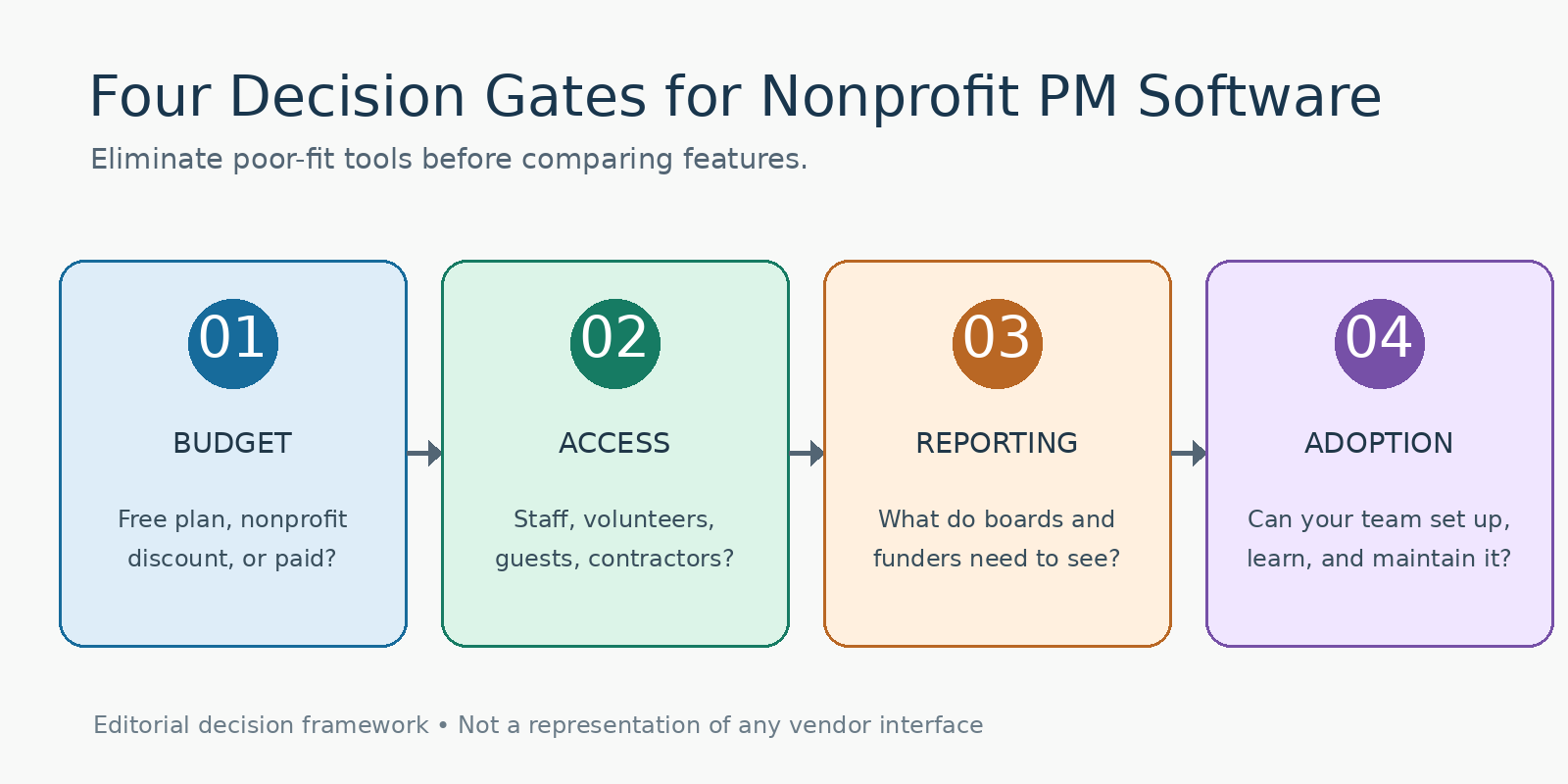
Gate 1: Budget. Are you on a free plan, a nonprofit benefit, or a paid subscription? This gate comes first because it’s the most binary. A nonprofit discount that you don’t qualify for isn’t a discount.
Gate 2: Access. Who needs to touch the system? Staff, volunteers, contractors, and external partners may be treated very differently on seats and billing, and that difference can quietly reshape your costs.
Gate 3: Reporting. What visibility do directors, boards, and funders actually require? “A dashboard would be nice” and “we must export milestone status for a funder every quarter” are very different requirements.
Gate 4: Adoption. Can your team realistically set up, learn, and maintain the tool? A powerful system that nobody updates is just an expensive archive.
| Gate | What it decides | What to verify |
|---|---|---|
| Budget | Free, discounted, or fully paid | Current plan limits; nonprofit eligibility and renewal terms |
| Access | Who can join, and at what cost | Seat counts; guest and volunteer permissions and billing |
| Reporting | How progress reaches boards and funders | Reporting, export, and permission options by plan |
| Adoption | Whether the tool will actually get used | Setup effort; training time; who administers it |
Plan-specific reporting and guest rules are checked in the product sections below. Any remaining verification notes identify details that should not be assumed.
Work through the gates in order, and notice how quickly the field narrows. A tool that fails the Budget gate doesn’t need a feature comparison. A tool that charges for every volunteer who needs to check one task list may fail the Access gate for an organization with a large, rotating volunteer base. Eliminating options early is the point. You’re not looking for the best product in the abstract. You’re looking for the one your organization can afford and maintain.
Nonprofit Project Management Software: Six Tools to Consider
Each tool below is discussed against the same four gates. These are research-based starting points, not rankings, and this guide does not claim the editorial team tested every product. Pricing, eligibility, and plan details change often. Check the linked vendor terms before committing, especially when inviting external volunteers or preparing reports for funders.
monday.com
Why consider it: monday.com suits organizations that qualify for its nonprofit seats and want structured, visible work across programs. Its appeal is organization: boards and views that make it clear who owns what.
Budget: For approved nonprofits, monday.com currently advertises 10 free Pro seats across its product offerings, 70% off additional seats, and a 33% Enterprise discount. Approval is not automatic: organizations must apply and provide eligibility documentation. Its ordinary Free plan is quite different—two seats, three boards, and no guests or viewers. Confirm your eligibility, product choice, location, and seat requirements before building a budget.
Access: The first 10 approved nonprofit seats may suit a staff team, but volunteer access cannot be priced by assuming every volunteer is free. The number and type of additional seats, along with guest capabilities, should be tested with the organization’s actual collaboration pattern.
Reporting: monday.com supports dashboards built from connected boards. Account administrators can also export account data. Neither fact, by itself, establishes that a particular dashboard or report meets funder requirements. Check the nonprofit plan’s dashboard limits, the required widgets, and the format of the report your board needs.
Limitation: A structured system asks for upfront design. A team without an administrator may find the setup heavier than the problem it’s solving.
Who might consider it: Nonprofits that confirm eligibility and have someone who can own the configuration.
Official source: monday.com for nonprofits and eligibility.
Asana
Why consider it: Asana is a fit for teams that want coordinated projects, timelines, and formal reporting, such as an organization running several funded programs that all report upward.
Budget: Asana advertises a 50% discount to qualifying nonprofits on Starter and Advanced plans, with eligibility verification required. Its Personal plan is free but has different capabilities from paid tiers. Confirm your country, organizational status, minimum seats, and whether your required reporting belongs to Starter or Advanced.
Access: Asana says guests invited from outside the organization’s email domain do not count toward paid subscription seats; its pricing page describes unlimited free guests on Starter. That makes guest collaboration worth testing—but confirm whether the volunteers need only guest-level access, and whether their real email-domain and project arrangements qualify.
Reporting: Asana lists reporting dashboards, custom fields, and timeline views on Starter, while Advanced adds portfolios and more advanced coordination capabilities. Define the exact board or funder report first, then verify whether Starter’s dashboards or Advanced’s portfolio view actually supports it.
Limitation: Tools built for formal coordination can feel like overkill for a small team with simple needs.
Who might consider it: Mid-sized nonprofits where program managers need consistent timelines and status visibility across several initiatives.
Official source: Asana nonprofit program and pricing.
ClickUp
Why consider it: ClickUp is for organizations that need configurable workflows, such as a team whose process doesn’t fit a standard template and wants to shape the tool around it.
Budget: ClickUp offers a Free Forever plan and advertises nonprofit pricing support, but its Help Center describes discounts as customized for some nonprofit organizations, rather than a guaranteed published percentage. Contact ClickUp for a quote before projecting discounted costs.
Access: ClickUp’s Free Forever guests have no guest-seat charge, but their shared-item permissions are full access rather than granular control. On paid plans, view-only guests are free; permission-controlled guests may require a billable seat after the included allowance. A volunteer-heavy nonprofit should test both access restrictions and seat charges, not just count invitations.
Reporting: ClickUp’s nonprofit page describes Custom Fields, Formulas, dashboards, calendars, forms, and volunteer time tracking as possible workflows. That is evidence of advertised use cases, not evidence that all functions are free or that a grant-compliance report is turnkey.
Limitation: Configurability is a double-edged sword. More options mean more decisions, and a small team can spend more time designing the system than using it. That is the Adoption gate talking.
Who might consider it: Nonprofits with a capable internal administrator and genuinely unusual workflows.
Official source: ClickUp nonprofit program and pricing.
Trello
Why consider it: Trello is a candidate for small teams with relatively simple, visual task coordination: what’s to do, who’s doing it, and what’s finished.
Budget: Trello’s Free Workspace allows up to 10 collaborators and up to 10 open boards, with a 10 MB attachment limit per file. Atlassian’s help center acknowledges nonprofit discounts, but do not assume a published discount for another Atlassian product applies to Trello.
Access: On Trello Free, the 10-collaborator limit includes Workspace members, board guests, and pending invitations. For an event that rotates volunteers, a guest is not a loophole around that limit. A team expecting more than 10 simultaneous collaborators must assess paid-plan rules or a different tool.
Reporting: A board can communicate task status visually, but do not treat it as a guaranteed funder report.
Limitation: A tool designed for simple coordination may feel strained once you need structured, funder-facing reporting across multiple programs.
Who might consider it: Very small teams whose real need is a clear, shared to-do view.
Official source: Trello pricing and Atlassian nonprofit discounts.
Freedcamp
Why consider it: Freedcamp is worth a look for budget-constrained teams considering a long-term free plan rather than a trial that expires.
Budget: Freedcamp publicly advertises a $0 Free plan with unlimited users, projects, tasks, and storage, all subject to its fair-use policy. That makes it a serious budget candidate rather than merely a short trial. It still does not mean every reporting or administrative feature is free.
Access: Freedcamp’s Free plan advertises unlimited users, which makes it worth considering for teams with rotating volunteers. However, its published plan comparison distinguishes group-level permissions on Free from project-level permissions on Pro and above. The Help Center describes separate project roles and an invitation-management workflow; it also notes a temporary limit of 10 outstanding invitations on Free, which eases as invitees join. Before rolling it out, test whether group-level access can keep each volunteer away from unrelated projects and files.
Reporting: Freedcamp includes core task, milestone, calendar, and time-tracking applications in its published Free plan, but its dedicated Reports feature, including visual project and user progress reports, is available on Business and Enterprise plans. For grant-funded programs requiring consolidated progress reports, compare the paid reporting tier with the manual summary your team could produce from free-plan task records.
Limitation: “Free” is only useful if the limits fit your actual work. Check the caps and whether the features you’d rely on sit behind a paid tier.
Who might consider it: Very small organizations with almost no software budget that confirm the free plan’s limits are workable.
Official source: Freedcamp pricing, user invitations and permissions, and Reports documentation.
Basecamp
Why consider it: Basecamp suits teams that prioritize centralized communication and straightforward collaboration, with discussion and tasks living in one place rather than scattered across inboxes.
Budget: Basecamp offers a nonprofit discount for qualifying registered 501(c)(3) organizations, but its current public page does not state the amount; confirm the current discount directly with Basecamp. The discounts page asks organizations to submit documentation after signup. Do not confuse its nonprofit discount with its separate free classroom-use offer for teachers and students. Its plans include different project and user allowances, including flat-rate unlimited-user options.
Access: Basecamp says clients, contractors, and guests all count as people added to an account, while plans with unlimited users allow unlimited invitations without per-person charges. This can be attractive for a large group, but only after the organization confirms which plan it actually needs.
Reporting: Basecamp emphasizes project discussions and to-dos; a team requiring complex cross-program dashboards should validate the exact report it can produce before adopting it.
Limitation: If your main need is detailed, structured progress reporting for funders, confirm how well a communication-first tool handles it.
Who might consider it: Teams whose biggest problem is scattered conversation rather than missing project structure.
Official source: Basecamp discounts and pricing.
This comparison does not claim first-hand product tests or a quantified review study. Any future claims about user satisfaction or onboarding difficulty require attributable review evidence.
Free Plans vs Nonprofit Discounts: What Is Actually Affordable?
These three terms get used interchangeably, and they shouldn’t be.
An ordinary free plan is available to anyone, usually with limits on features, storage, or users. It costs nothing, but it may stop fitting as your work grows. An eligibility-based nonprofit plan is a special arrangement, often a discount or a larger allowance, available only if you meet the vendor’s definition of a nonprofit. A discounted paid plan is still a subscription, just a cheaper one, and its real cost depends on how many people need seats.
That last point is where budgets go sideways. Costs can shift with additional seats, external collaborators, and upgrades when you outgrow a tier. A nonprofit plan can be more useful than a generic free plan, since it may give you capabilities the free tier withholds, but only if your organization qualifies. Eligibility can depend on legal status, geography, and documentation, and some programs have renewal conditions. Nonprofit benefits are not interchangeable: monday.com publishes an eligible-organization seat package, Asana publishes a percentage discount on selected tiers, and ClickUp requests contact for customized nonprofit terms.
The practical advice is to avoid doing arithmetic with unverified numbers. Before you estimate an annual cost, confirm the discount, the number of billable users, the eligible plan, the billing period, and any seat minimums. For example, Asana’s help center states a two-seat minimum on paid plans, while Trello Free counts guests toward its ten-collaborator limit. Other seat, billing-cycle, and guest configurations must be checked for the actual plan chosen. A figure built on a guess will look authoritative in a board packet and be wrong by renewal time.
Smaller organizations can apply the same cost-and-complexity test in our small-business task management guide.
Volunteers, Grant Deliverables, and Reporting: Three Fit Tests
Three needs tend to separate a workable choice from a frustrating one. Run each as a quick test.
The volunteer test. Volunteers are the group most likely to wreck a seat-based budget. Ask: can volunteers be invited without becoming full paid users? Can you limit what they see? When a volunteer leaves, can you transfer their responsibilities cleanly? Minimizing paid seats matters, but so does making sure volunteers can find their tasks without a tutorial. Asana’s external guests do not count as paid members; Trello Free includes guests in its ten-collaborator limit; and ClickUp has distinct permissions and billing for Free Forever versus paid-plan guests. Recheck these rules against the exact plan before rollout.
The grant test. Many nonprofits manage grant-funded work, and a PM tool can help track deliverables, deadlines, owners, and milestones. That’s useful. It is not the same as a grants-management system, which handles things like applications, award tracking, and compliance. Don’t ask a project tool to do the job of specialist software. If grant administration is your core need, that’s a separate category with its own selection process.
The reporting test. Think about what you owe directors, boards, and funders, and how often. Can you produce a progress update without rebuilding it by hand? If audit trails or exports are required, check whether they’re available on the plan you can afford.
A word on categories: project management software is not volunteer management software, fundraising CRM, or donor management. Those systems handle scheduling shifts, tracking gifts, and managing donor relationships. A PM tool can sit alongside them, but it won’t replace them, and trying to stretch it that far is a reliable way to end up with two half-working systems.
Which Tool Fits Your Nonprofit’s Situation?
Here is the framework applied to five common situations. Each is a starting hypothesis, to be confirmed against verified terms.
A very small nonprofit with almost no software budget. Start at the Budget gate. Freedcamp advertises unlimited free users and projects subject to fair use, while Trello Free limits each Workspace to 10 collaborators and 10 open boards. That difference matters more than whether both have a $0 price tag.
A hybrid staff-and-volunteer team. The Access gate decides this one. Asana’s free external guests, ClickUp’s different free-versus-paid guest roles, and Basecamp’s unlimited-user plans are worth examining against real volunteer permissions. None should be chosen without a sample invitation and offboarding test.
Multiple funded programs requiring structured reporting. The Reporting gate leads. Asana’s paid reporting features and monday.com’s board-connected dashboards are candidates, provided the organization qualifies for the nonprofit terms, can maintain the setup, and verifies the required board/funder export.
An organization that already uses a donor CRM. Keep the PM tool focused on project coordination and let the CRM do donor work. Avoid duplicating data; choose the simplest tool that coordinates tasks.
A small team that would gain little from a complex system. The Adoption gate wins. A simple visual tool, or even a well-run spreadsheet, may serve better than something configurable. ClickUp’s many workflow options are valuable only when somebody can maintain them.
Before You Commit: The Nonprofit PM Purchase Checklist
Before anyone enters a credit card number, work through this list:
- Verify eligibility and renewal conditions. Confirm you qualify for the nonprofit offer and what keeps it in place year to year.
- Calculate actual billable seats. Count who needs a full account and who doesn’t.
- Confirm guest and volunteer permissions. Check what outsiders can see and do, and how they’re billed.
- Check exports and funder reporting requirements. Make sure the plan you can afford can produce what you owe.
- Establish data ownership and security expectations. Know who owns your data, what happens if you leave, and what your organization requires.
- Pilot one real project before organization-wide adoption. Choose a real project, not a demo.
Final Recommendation
The four gates narrow the field fast. Budget removes tools you can’t afford or don’t qualify for. Access removes those that penalize your volunteer model. Reporting removes tools that can’t produce what you owe. Adoption removes anything your team won’t realistically maintain.
What’s left is a short list, usually two or three tools. Run a small, representative pilot on one real project with the people who’ll actually use it. A free trial alone doesn’t prove the tool meets your operational needs; it only shows the tool works on a good day. The right choice is the one your team will still be using in a year.